

Summary
A webhook is an HTTPS request that TruAgents sends to a URL you choose the moment something happens, so your system doesn’t have to keep asking. Today, TruAgents sends webhooks from one place: the Send webhook step in a workflow. When a workflow reaches that step, TruAgents sends onePOST with a JSON description of the workflow, the contact, and the inbound communication that started it.
This page is the technical contract for receivers. For the in-app setup, see Send webhook step. For a complete CRM example, see Send hot leads to Salesforce.
Who this is for
Developers and technical admins building or configuring the endpoint that receives TruAgents webhooks.The request
Example body
Field reference
Fields with no value are left out rather than sent empty. Your parser should treat every field under
data.contact and data.communication as optional.
The payload doesn’t include the AI’s decision details (reason or confidence), the tags applied by earlier steps, or a company name. Follow data.workflow._links.self to see the decision in TruAgents.
Responding
- Return any
2xxstatus to confirm delivery. TruAgents ignores the response body. - Respond within 30 seconds. A slower response counts as a timeout.
- Reply
2xxonly after the event is safe: either the work is done, or the event is saved to a durable queue or database that your own worker retries. If you reply first and the work then fails, TruAgents won’t send the event again.
Failures and retries
Retry schedule
After a temporary failure, TruAgents sends the same request again roughly every 5 to 10 minutes, for up to 24 hours from when the workflow run started. Every attempt carries the sameid.
- If an attempt returns
2xx, the step is marked Succeeded and the workflow carries on from there. Steps that already ran before the webhook aren’t repeated. - If an attempt returns a non-retryable status (for example
400or401), the step is marked Failed and the retries stop. - If the endpoint is still failing after 24 hours, the run is marked Failed and TruAgents stops trying.
https:// (“Webhook URL must use HTTPS”) or when the host resolves to a private, loopback, or internal address (“Webhook URL is not allowed”).
Choosing your status codes
- Return
2xxonce you have safely stored or processed the event. - Return
5xxwhen the failure is on your side and a later attempt could succeed (for example, your CRM is down). - For a request that can never succeed, such as a bad token or a payload you refuse, use a
4xxstatus other than408or429. TruAgents stops trying.408and429are temporary, and TruAgents retries them.
Duplicates and ordering
Delivery is at least once. In rare cases, such as a timeout after your endpoint already processed the request, you receive the same event more than once.- De-duplicate on
id. It’s the same across every attempt of the same step in the same run. - Or make your write idempotent. For example, upsert on
data.contact.idor the contact’s email instead of always creating a record. - Don’t rely on ordering. Two communications from the same contact can arrive in either order.
Security
- HTTPS only, public hosts only. TruAgents won’t deliver to
http://URLs, IP literals in private ranges,localhost, or internal hostnames. - Header values aren’t secret. Headers are stored with the workflow and anyone in your organization who can open the workflow can read them. Never put CRM credentials, API keys for other systems, or passwords in a header.
- No request signing yet. TruAgents doesn’t sign webhook requests today. To make sure a request came from your workflow, use one of these:
- an endpoint URL that is long and random (no-code tools like Zapier and Make generate these), or
- a dedicated, low-privilege token in a header (for example
X-Relay-Token) that your endpoint checks and that unlocks nothing else. Rotate it when people leave.
- Personal data. The payload contains the contact’s name, email, phone, and the start of their message. Send it only to systems your company controls or has a data processing agreement with.
Where to see delivery results
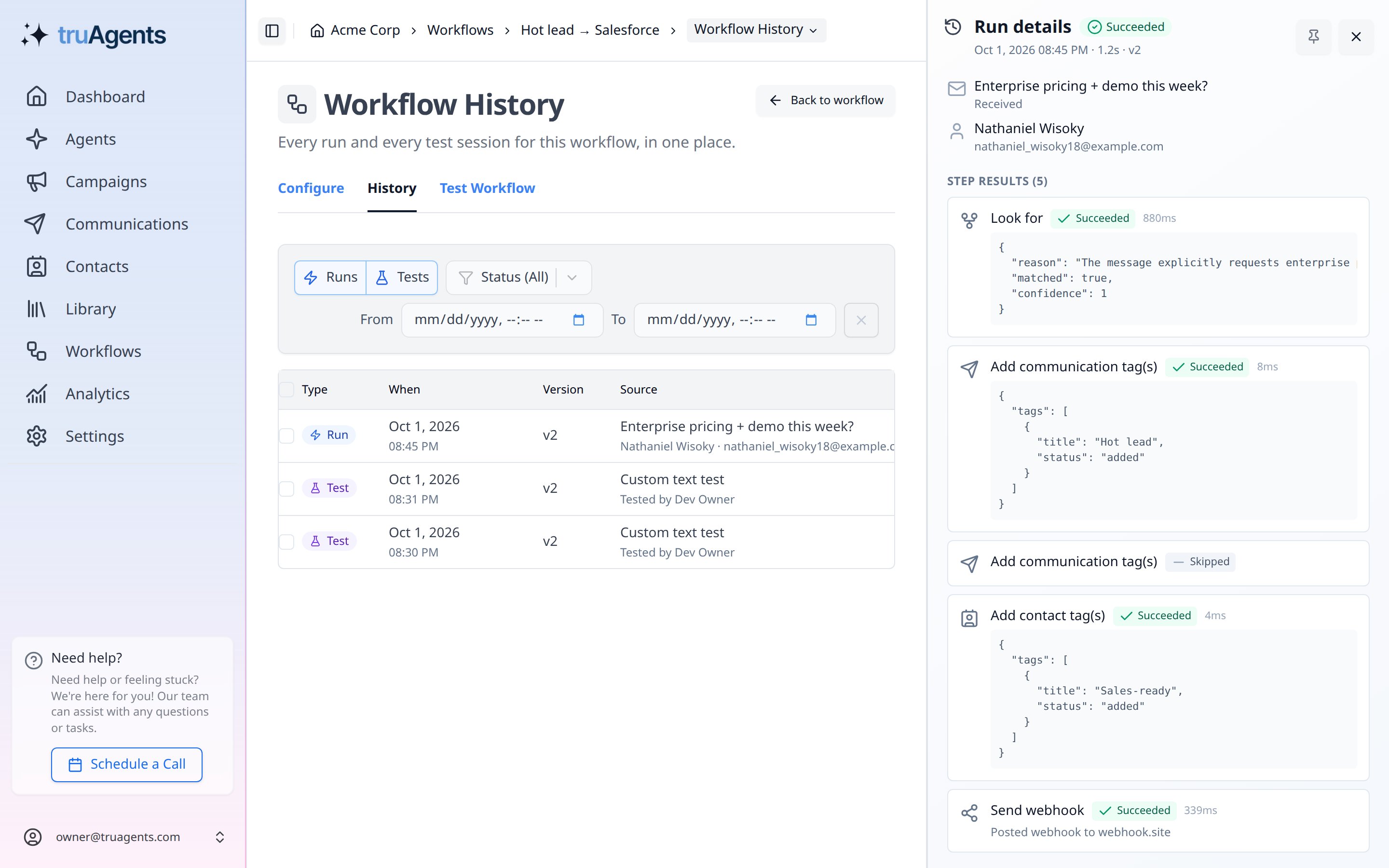
Open the workflow, then the History tab, and click a run.
Because TruAgents doesn’t show individual attempts yet, keep your own record on the receiving side. Zapier’s Zap history and Make’s History tab list every request they receive, and a custom endpoint should log the
id, the status code it returned, and any error.
Related pages
- Send webhook step
- Send hot leads to Salesforce
- Workflow automations overview
- Rate limits and retries — for calls you make to TruAgents.