> ## Documentation Index
> Fetch the complete documentation index at: https://docs.truagents.com/llms.txt
> Use this file to discover all available pages before exploring further.
# Creating your first Segment
**Segments** let you group contacts based on shared attributes or logical rules.
They make it easy to target specific groups within your campaigns — for example, “Contacts in California” or “Credit card customers with low engagement.”
#### **Viewing Segments**
The **Segments** tab shows all defined segments and includes:
| Column | Description |
| :- | :- |
| **Segment Name** | Name of the segment. |
| **Data Source Origin** | The originating system used for segmentation logic. |
| **Data Source** | The connected data source (if applicable). |
Use the **Search** or **Filter List** tools to locate specific segments, or click **Add Contact Segment** to create a new one.
***
#### **Creating a New Segment**
Click **Add Contact Segment** to define a new audience group.
| Field | Description |
| :- | :- |
| **Segment Name** | The name of your segment (e.g., “Recent Leads,” “West Coast Clients”). |
| **Data Source Origin** | Select the integration or dataset from which your segmentation logic will pull data. |
| **Data Source** | Choose the specific data connection (e.g., Salesforce, HubSpot, Experian API). |
| **Eligibility Logic** | Write logical conditions that determine who belongs in this segment. You can use variables, comparison operators (`<`, `>`, `==`), and logical operators (`AND`, `OR`, `NOT`). Example: `email.endswith("@gmail.com") AND state == "CA"` |
Press **Shift + Enter** to view all available variables from your connected data source.
Once saved, your new segment appears in the list, and TruAgents automatically evaluates which contacts match the criteria.
 ***
#### **Editing a Segment**
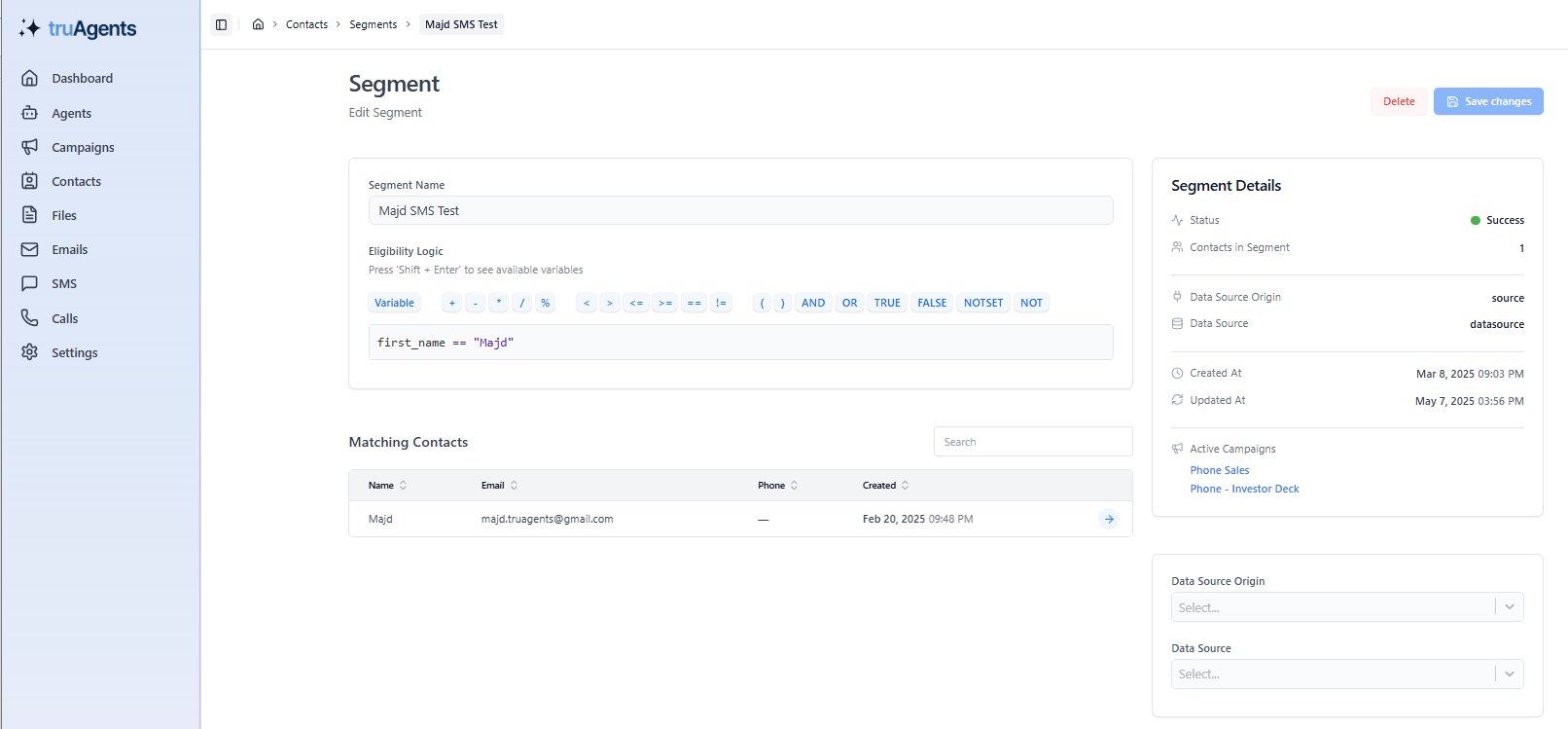
When editing an existing segment, you can:
* Update its **Eligibility Logic**
* Change its **Data Source**
* See **Matching Contacts** that fit the criteria
* View **Segment Details**, such as creation date, status, and active campaigns using the segment
Click **Save Changes** to apply updates or **Delete** to remove the segment.
***
#### **Segment Nuances / Warnings:**
There are two key mechanics to understand:
1. Segment counts in the UI are cached
* Calculated when the segment is **saved**
* **Not automatically refreshed** when underlying data changes
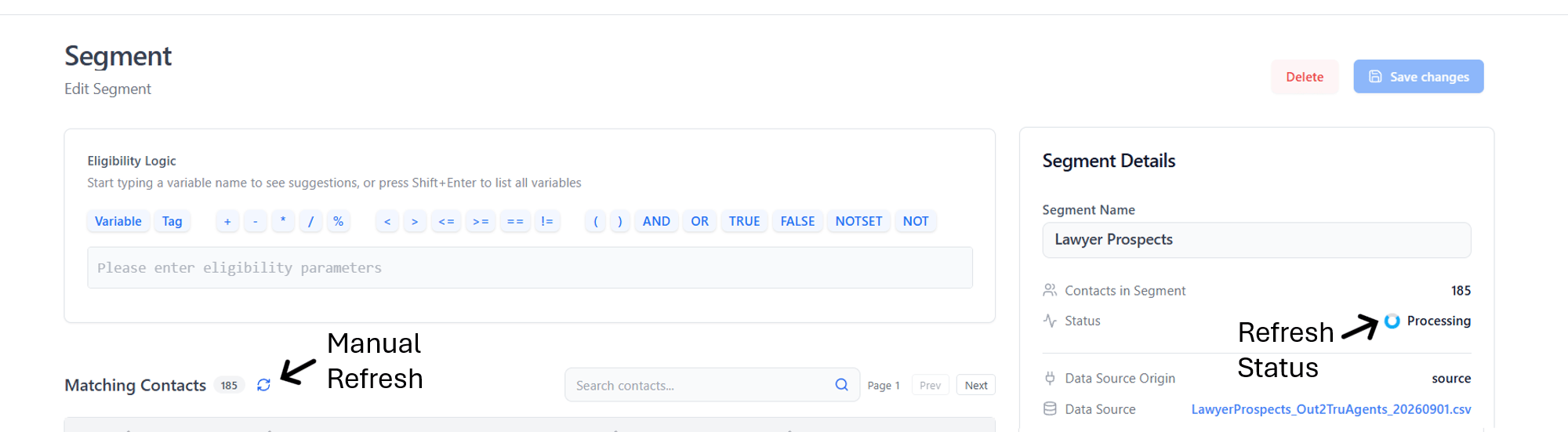
* You can use the "refresh" button to force the system to update the counts (processing may take a few seconds - you can see this in the refresh status section)
***
#### **Editing a Segment**
When editing an existing segment, you can:
* Update its **Eligibility Logic**
* Change its **Data Source**
* See **Matching Contacts** that fit the criteria
* View **Segment Details**, such as creation date, status, and active campaigns using the segment
Click **Save Changes** to apply updates or **Delete** to remove the segment.
***
#### **Segment Nuances / Warnings:**
There are two key mechanics to understand:
1. Segment counts in the UI are cached
* Calculated when the segment is **saved**
* **Not automatically refreshed** when underlying data changes
* You can use the "refresh" button to force the system to update the counts (processing may take a few seconds - you can see this in the refresh status section)
 2. Campaigns use live evaluation
* When a campaign runs, TruAgents evaluates the segment **in real time**
* Uses **current contact data**, not the cached count
👉 This can result in:
* UI shows **X contacts**
* Campaign sends to **Y contacts**
***
**Data Source-Based Segments: Key Behavior**
Each file upload creates a **new versioned data source (**`datasource_id`**)**.
* Contacts always store the **most recent** `datasource_id`
* If a contact is updated later, its original data source link is **overwritten**
***
## **Common Scenarios when defining Segments by Datasource**
| Scenario | What Happens | Impact on Segment | What You’ll See | Action Required |
| :- | :- | :- | :- | :- |
|
2. Campaigns use live evaluation
* When a campaign runs, TruAgents evaluates the segment **in real time**
* Uses **current contact data**, not the cached count
👉 This can result in:
* UI shows **X contacts**
* Campaign sends to **Y contacts**
***
**Data Source-Based Segments: Key Behavior**
Each file upload creates a **new versioned data source (**`datasource_id`**)**.
* Contacts always store the **most recent** `datasource_id`
* If a contact is updated later, its original data source link is **overwritten**
***
## **Common Scenarios when defining Segments by Datasource**
| Scenario | What Happens | Impact on Segment | What You’ll See | Action Required |
| :- | :- | :- | :- | :- |
| - **First-time file load** ✅
| Contacts are loaded and assigned a single `datasource_id` | Segment accurately reflects all contacts from that file | UI count matches actual send count | None — safe to use (short-term) |
| - **Re-loading the same file** (same file name, same data)⚠️
| File is uploaded again → new `datasource_id` created → contacts updated to new ID | Segment still points to old `datasource_id` → no contacts match | UI may still show old count, but campaign sends to **0 or fewer contacts** | Update segment to new data source or switch to attribute-based definition |
| - **Re-loading file with altered data** (Same file name, different data)⚠️
| New file version creates new `datasource_id` with changed records | Segment points to outdated data source and outdated logic | Mismatch between expected audience and actual send | Rebuild or validate segment; prefer attribute-based logic |
| **4A. All contacts updated from a new source** ⚠️ | All contacts overwritten with a new `datasource_id` | Original segment completely breaks (no matches) | UI may still show old count; campaign sends to **0 contacts** | Update or recreate segment |
| **4B. Partial contact updates** ⚠️⚠️ | Only some contacts updated to new `datasource_id`; others remain unchanged | Segment becomes **partially broken** (mixed membership) | Campaign sends to **subset of expected audience**; hard-to-diagnose gaps | Review segment membership; strongly consider attribute-based definition |
| - **Data source deleted** 🚨
| Data source tied to segment is removed | Segment loses its filter and defaults to **ALL contacts** | Campaign may send to entire contact base unexpectedly | Before deletion, identify impacted segments; update filters or delete segments |
| - **Segment definition edited (with scheduled runs)** ⚠️
| Segment logic is changed after a campaign is scheduled but before it runs | Scheduled campaign uses **new definition**, not original | Campaign reaches a different audience than intended | Review scheduled campaigns before editing; consider creating a new segment instead |
| - **Contact data changed (manual or external process)** ⚠️
| Contact attributes used in segment filters are updated | Segment membership changes dynamically | UI count becomes stale; campaign send count differs | Recalculate/refresh segment and validate counts before sending |
**Best Practice (Strongly Recommended)**
❌ **Avoid:**
* Segments defined **only by data source**
✅ **Prefer:**
* Segments defined by **stable contact attributes**, such as:
* Employer
* Eligibility flags
* Product ownership
* Custom fields
**Why:**
* Attributes persist across updates
* Segments remain stable over time
* No mismatch between UI counts and campaign sends