> ## Documentation Index
> Fetch the complete documentation index at: https://docs.truagents.com/llms.txt
> Use this file to discover all available pages before exploring further.
# Send hot leads to Salesforce
> Detect sales-ready replies with a workflow and create or update a Salesforce Lead through your own relay, Zapier, or Make.
## Summary
When a contact replies with buying intent, for example asking for pricing or a demo, a TruAgents workflow can tag them as a hot lead and send them to Salesforce as a Lead.
How it works:
1. A **Look for** step decides whether the message is a hot lead.
2. On the **MATCH** branch, tag steps mark the communication and contact.
3. A **Send webhook** step sends the contact and the message to a receiver.
4. The receiver creates or updates the Lead in Salesforce.
TruAgents doesn't write to Salesforce directly from workflows. Step 4 needs a receiver. This page covers the TruAgents side and what Salesforce needs. Then follow the guide for your receiver.
A small HTTPS service your developer hosts. Full control, no third-party tool, and TruAgents retries when Salesforce is down.
No code. A Zap catches the webhook and finds or creates the Lead.
No code, more control over branching. A scenario creates or updates the Lead.
| | Your own relay | Zapier | Make |
| - | - | - | - |
| Who sets it up | A developer and your Salesforce admin | An ops person | An ops person |
| Where Salesforce credentials live | In your relay's hosting | In Zapier | In Make |
| If Salesforce is down | The relay returns `503` and TruAgents retries | Zapier has already replied `200`. Use Zapier's replay. | Make has already replied `200`, unless you add a webhook response. Use Make's history. |
| Duplicate protection | Upsert on the TruAgents contact id | Find by email, create if not found | Search by email, then update or create |
| Where to see errors | Your relay's logs | **Zap history** | Scenario **History** |
## Who this is for
TruAgents admins working with their Salesforce admin, and the developer or ops person who builds the receiver.
## Step 1: build the workflow in TruAgents
1. Go to **Workflows**, click **+ Add Workflow**, and pick the **Hot lead** starter.
2. Rename it, for example "Hot lead → Salesforce".
3. Click the **Look for** step and adjust the instructions to match what a hot lead means for you. For example: "The contact sounds interested, asks about pricing, asks for a demo, or wants to talk soon."
4. On the **MATCH** branch, after the tag steps, add **Send webhook**. You'll paste the receiver's URL in step 2.
5. Click **Save workflow**. Leave the workflow inactive until the receiver is ready.
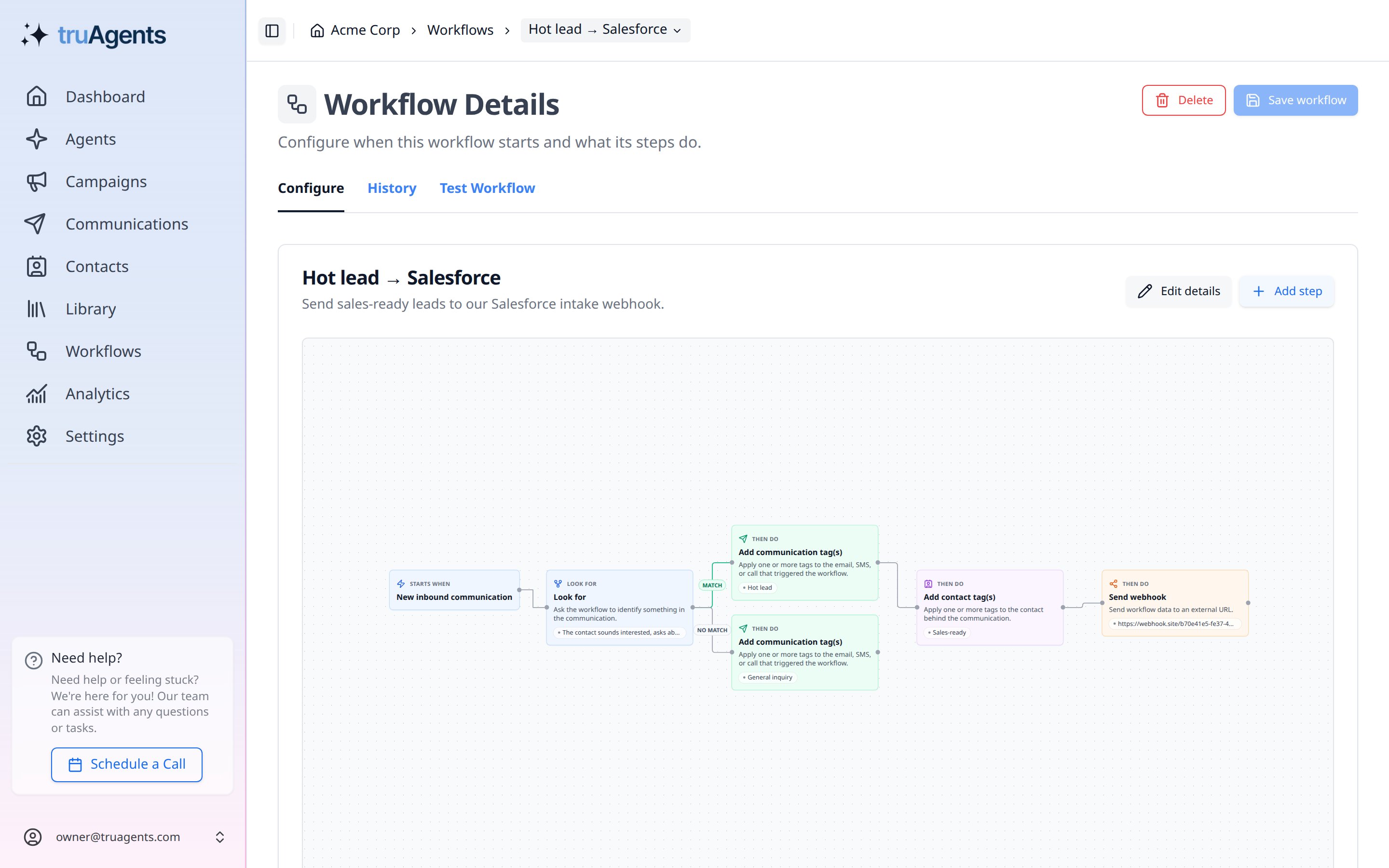 The [Send webhook step](/automations/send-webhook-step) page covers each screen in detail.
## Step 2: build the receiver
### What Salesforce needs
A Salesforce Lead requires **Last Name** and **Company**. TruAgents sends the contact's full name as one value and no company name, so every guide derives them the same way:
| Salesforce Lead field | From the TruAgents webhook | Notes |
| - | - | - |
| First Name | Everything before the last word of `data.contact.name` | |
| Last Name (required) | The last word of `data.contact.name` | If the name is empty, use the email address so the Lead still saves. The relay and Make use `Unknown` when both are empty. |
| Company (required) | The domain of `data.contact.email`, for example `acme` from `jane@acme.com` | The relay and Make use `Unknown` when there is no email. Zapier stops those contacts before the search, because a blank search fails and never creates the Lead. Free email domains like `gmail.com` give a poor value. Replace it later if your team enriches company names. |
| Email | `data.contact.email` | Make and Zapier use it to find existing Leads. Zapier requires it. |
| Phone | `data.contact.phone` | E.164 format, for example `+16503775420`. |
| Lead Source | The fixed value `TruAgents` | Add `TruAgents` to your Lead Source picklist first, or Salesforce rejects the Lead. |
| Rating | The fixed value `Hot` | |
| Description | `data.communication.subject`, `data.communication.preview`, and `data.communication._links.self` | Gives the rep the message and a link back to the conversation in TruAgents. |
| TruAgents Contact Id | `data.contact.id` | Relay only. A custom external id field that makes the upsert safe to repeat. |
The full list of webhook fields is in the [Webhooks reference](/developers/webhooks#field-reference).
TruAgents can deliver the same event more than once, and the same person can send several hot messages. Always **find or update** the Lead instead of always creating one.
### Follow your receiver's guide
* [Your own relay](/automations/salesforce-relay)
* [Zapier](/automations/salesforce-zapier)
* [Make](/automations/salesforce-make)
Each guide ends with the receiver's URL (and, for the relay, a token header) to paste into the **Send webhook** step.
## Step 3: test and go live
1. On the **Test Workflow** tab, run a hot-lead message and a neutral message. Only the hot one should show "Would POST webhook to ``". Tests don't send anything.
2. Set the workflow to **Active** on the **Workflows** list.
3. From a test address, email your TruAgents inbox a hot-lead message, for example: "We're evaluating vendors this week. Can you send enterprise pricing for 40 seats and set up a demo on Thursday?"
4. In TruAgents, open the workflow's **History** tab. The run should show the **Send webhook** step as **Succeeded**.
5. Check that the receiver got the request: your relay's logs, **Zap history**, or the scenario's **History** in Make.
6. In Salesforce, find the Lead by email. Check the name, company, **Lead Source**, **Rating**, and the conversation link in **Description**.
7. Send a second hot message from the same address. Salesforce should still have one Lead for that address. With the relay or Make, that Lead is updated. With Zapier, the existing Lead is found and not duplicated, but it is not updated. Add the optional Task step if you want the new message logged on the Lead.
## Success checklist
* [ ] Hot-lead tests reach the webhook step, and neutral tests don't.
* [ ] No header on the **Send webhook** step contains Salesforce credentials.
* [ ] A real hot-lead email creates one Lead with **Last Name**, **Company**, **Email**, and the conversation link.
* [ ] A second message from the same contact does not create a second Lead. With the relay or Make, it updates that Lead. With Zapier, it finds the Lead and adds a Task only if you configured that step.
* [ ] Someone gets notified when the relay, Zap, or scenario fails.
## Related pages
* [Send webhook step](/automations/send-webhook-step)
* [Webhooks reference](/developers/webhooks)
* [Salesforce integration](/integrations/salesforce): importing contacts from Salesforce into TruAgents.
This documentation is built and hosted on [Mintlify](https://mintlify.com), a developer documentation platform.
The [Send webhook step](/automations/send-webhook-step) page covers each screen in detail.
## Step 2: build the receiver
### What Salesforce needs
A Salesforce Lead requires **Last Name** and **Company**. TruAgents sends the contact's full name as one value and no company name, so every guide derives them the same way:
| Salesforce Lead field | From the TruAgents webhook | Notes |
| - | - | - |
| First Name | Everything before the last word of `data.contact.name` | |
| Last Name (required) | The last word of `data.contact.name` | If the name is empty, use the email address so the Lead still saves. The relay and Make use `Unknown` when both are empty. |
| Company (required) | The domain of `data.contact.email`, for example `acme` from `jane@acme.com` | The relay and Make use `Unknown` when there is no email. Zapier stops those contacts before the search, because a blank search fails and never creates the Lead. Free email domains like `gmail.com` give a poor value. Replace it later if your team enriches company names. |
| Email | `data.contact.email` | Make and Zapier use it to find existing Leads. Zapier requires it. |
| Phone | `data.contact.phone` | E.164 format, for example `+16503775420`. |
| Lead Source | The fixed value `TruAgents` | Add `TruAgents` to your Lead Source picklist first, or Salesforce rejects the Lead. |
| Rating | The fixed value `Hot` | |
| Description | `data.communication.subject`, `data.communication.preview`, and `data.communication._links.self` | Gives the rep the message and a link back to the conversation in TruAgents. |
| TruAgents Contact Id | `data.contact.id` | Relay only. A custom external id field that makes the upsert safe to repeat. |
The full list of webhook fields is in the [Webhooks reference](/developers/webhooks#field-reference).
TruAgents can deliver the same event more than once, and the same person can send several hot messages. Always **find or update** the Lead instead of always creating one.
### Follow your receiver's guide
* [Your own relay](/automations/salesforce-relay)
* [Zapier](/automations/salesforce-zapier)
* [Make](/automations/salesforce-make)
Each guide ends with the receiver's URL (and, for the relay, a token header) to paste into the **Send webhook** step.
## Step 3: test and go live
1. On the **Test Workflow** tab, run a hot-lead message and a neutral message. Only the hot one should show "Would POST webhook to ``". Tests don't send anything.
2. Set the workflow to **Active** on the **Workflows** list.
3. From a test address, email your TruAgents inbox a hot-lead message, for example: "We're evaluating vendors this week. Can you send enterprise pricing for 40 seats and set up a demo on Thursday?"
4. In TruAgents, open the workflow's **History** tab. The run should show the **Send webhook** step as **Succeeded**.
5. Check that the receiver got the request: your relay's logs, **Zap history**, or the scenario's **History** in Make.
6. In Salesforce, find the Lead by email. Check the name, company, **Lead Source**, **Rating**, and the conversation link in **Description**.
7. Send a second hot message from the same address. Salesforce should still have one Lead for that address. With the relay or Make, that Lead is updated. With Zapier, the existing Lead is found and not duplicated, but it is not updated. Add the optional Task step if you want the new message logged on the Lead.
## Success checklist
* [ ] Hot-lead tests reach the webhook step, and neutral tests don't.
* [ ] No header on the **Send webhook** step contains Salesforce credentials.
* [ ] A real hot-lead email creates one Lead with **Last Name**, **Company**, **Email**, and the conversation link.
* [ ] A second message from the same contact does not create a second Lead. With the relay or Make, it updates that Lead. With Zapier, it finds the Lead and adds a Task only if you configured that step.
* [ ] Someone gets notified when the relay, Zap, or scenario fails.
## Related pages
* [Send webhook step](/automations/send-webhook-step)
* [Webhooks reference](/developers/webhooks)
* [Salesforce integration](/integrations/salesforce): importing contacts from Salesforce into TruAgents.
This documentation is built and hosted on [Mintlify](https://mintlify.com), a developer documentation platform.